
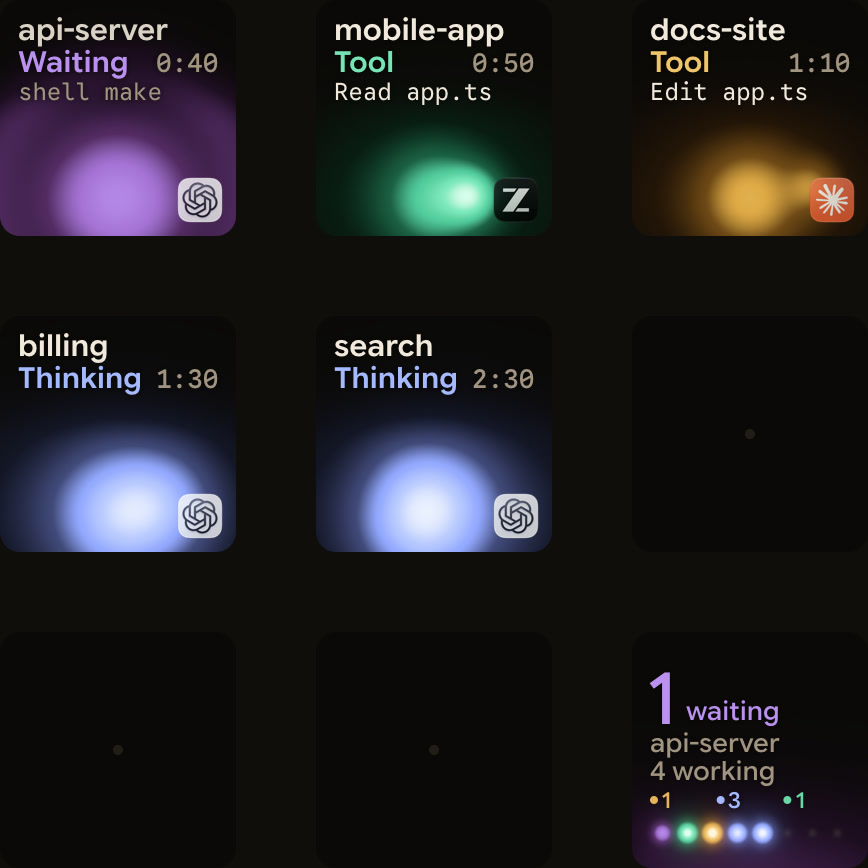
The Codex CLI can notify you when a turn finishes and when it stops to ask for approval. Turn both on under [tui] in ~/.codex/config.toml. To run a script of your own when a turn completes, add notify. And when you run several sessions, a display that shows which one is waiting saves you hunting through windows.
1. Terminal notifications
Add this to ~/.codex/config.toml:
[tui]
notifications = ["agent-turn-complete", "approval-requested"]
notifications = true turns them all on; a list keeps only the events you name. Two more settings go in the same table:
notification_condition:"unfocused"is the default and fires TUI notifications only when the terminal is unfocused, while"always"fires them every time.notification_method:"auto"is the default and prefers OSC 9 notifications before falling back to BEL, or you can set"osc9"or"bel".
Running codex with no subcommand launches the interactive terminal UI (TUI), where notifications are built in and on by default. OSC 9 is a terminal escape sequence that some terminals show as a desktop notification. BEL is the \x07 character.
Codex stores its local state under CODEX_HOME, which defaults to ~/.codex. Project-scoped .codex/config.toml files cannot override machine-local notification settings, so set notification keys in your user-level ~/.codex/config.toml, or pass a one-off TOML override from the CLI with -c or --config.
2. Run your own program when a turn finishes
notify runs a program after every turn and passes it one JSON argument. Root keys must appear before tables in TOML, so put it near the top of the file, above any [table] line:
notify = ["python3", "/path/to/notify.py"]The JSON includes type (agent-turn-complete), thread-id, turn-id, cwd, input-messages and last-assistant-message. On macOS, OpenAI's example script uses terminal-notifier to show a turn-completion notification:
#!/usr/bin/env python3
import argparse
import json
import subprocess
import sys

def main() -> int:
    parser = argparse.ArgumentParser(
        description="Show a Codex turn-completion notification on macOS."
    )
    parser.add_argument("notification", type=json.loads, help="Codex notification JSON")
    notification = parser.parse_args().notification
    if notification.get("type") != "agent-turn-complete":
        return 0
    title = f"Codex: {notification.get('last-assistant-message', 'Turn Complete!')}"
    message = " ".join(notification.get("input-messages", []))
    subprocess.check_output(
        [
            "terminal-notifier",
            "-title",
            title,
            "-message",
            message,
            "-group",
            "codex-" + notification.get("thread-id", ""),
            "-activate",
            "com.googlecode.iterm2",
        ]
    )
    return 0

if __name__ == "__main__":
    sys.exit(main())
notify only fires when a turn completes. For approval requests, use the approval-requested notification above.
Codex ignores notify when it appears in a project-local .codex/config.toml file and prints a startup warning, so configure notify in your user-level ~/.codex/config.toml.
For how the CLI installs, loads config.toml and AGENTS.md, and runs non-interactively with codex exec, see OpenAI Codex CLI: install, commands, config.toml and codex exec.
Run a script on approval requests with PermissionRequest hooks
Because notify currently fires only on agent-turn-complete, use a PermissionRequest lifecycle hook when you want to run an external command as soon as Codex is about to ask for approval, such as a shell escalation or a managed-network approval. PermissionRequest does not run for commands that do not need approval.
{
  "hooks": {
    "PermissionRequest": [
      {
        "matcher": "Bash",
        "hooks": [
          {
            "type": "command",
            "command": "/usr/bin/python3 \"$(git rev-parse --show-toplevel)/.codex/hooks/permission_request.py\"",
            "statusMessage": "Checking approval request"
          }
        ]
      }
    ]
  }
}- Where hooks load: local Codex reads hooks from
hooks.jsonor inline[hooks]tables inconfig.tomlacross user, system and trusted project layers. - Matcher filter: on
PermissionRequest, thematcherregex is applied totool_name, with values such asBash,apply_patchand MCP tool names, and"*"matches every tool. - Standard input payload: each command hook receives one JSON object on
stdinwithsession_id,turn_id,cwd,model,permission_mode,tool_nameandtool_input. - Alert-only hooks: if your hook exits
0with no output, it makes no decision and Codex uses its normal approval flow. - Review and trust: non-managed hooks are skipped until you review and trust their current hash using the
/hookscommand in the CLI.
If a single configuration layer defines hooks in both hooks.json and config.toml, Codex loads both and warns at startup, so prefer one format per layer. Hooks are enabled by default and can be turned off by setting hooks = false under [features] in config.toml.
Desktop app, IDE extension and mobile notifications
Notification controls and delivery channels vary across Codex surfaces:
- Desktop app alerts: open
Settingsin the ChatGPT desktop app to set turn-completion alerts to appear never, only while ChatGPT is in the background, or always. - Permission and question toggles: separate controls in the ChatGPT desktop app
Settingsturn permission and question notifications on or off. - Activity view: select the sidebar bell, or press
Cmd+Option+Uon macOS orCtrl+Alt+Uon Windows, to see unread, running or waiting chats. - Floating pet: in the ChatGPT desktop app, an optional floating pet shows when a chat is
Running,Needs input,ReadyorBlocked. - IDE extension: the IDE extension has no separate notification controls, so keep the chat open or configure
notifyon the connected Codex host. - Mobile notifications: pair the ChatGPT mobile app with an awake, online macOS or Windows desktop app host to get notified and approve actions.
To set up mobile access, open the ChatGPT desktop app on the host computer, go to Settings > Connections > Control this Mac or PC, select Set up or Add, and scan the QR code from your iOS or Android phone. Mobile setup starts from the desktop app and cannot be set up from the Codex CLI or IDE extension. Once connected, open Codex in the ChatGPT mobile app on iOS, or Remote if your app still shows that label, to receive notifications when work completes or needs your attention.
Which one to use
| You want | Use |
|---|---|
| To know when a turn ends or Codex needs approval | [tui] notifications |
| Your own sound, banner or message | notify with a script |
| To run a script when Codex asks for tool approval | A PermissionRequest hook in hooks.json or config.toml |
| Alerts, an Activity view or a floating pet on desktop | ChatGPT desktop app Settings and Cmd+Option+U (Ctrl+Alt+U on Windows) |
| Phone alerts and remote approvals for desktop chats | ChatGPT mobile app paired in Settings > Connections > Control this Mac or PC |
| To see which of several sessions is waiting | A display that shows every session |
When notifications aren't enough
A notification tells you that some Codex session needs you. With a desktop chat, two terminal sessions and a codex exec run going, you still have to find which one.
Orbtile shows every Codex session as its own key on the Logitech MX Creative Keypad, or a tile on an iPhone or Android phone: desktop app chats, terminal sessions and codex exec runs. It reads Codex's own thread files, so there's nothing to install. A waiting session glows magenta-violet and moves to the front. From the keys you can answer the Codex desktop app's command approvals and its supported multiple-choice questions. For a terminal session's command approval, the keys offer Allow; to say no, answer in the terminal. Anything else shows Answer on computer.
For Kimi Code's terminal and web UI alerts, see Kimi Code notifications: hooks, NotifyUser and TUI settings.
FAQ
Why doesn't notify fire when Codex asks for approval?
It only runs when a turn completes. Add approval-requested to tui.notifications in ~/.codex/config.toml, or configure a PermissionRequest hook to run a script when Codex is about to ask for approval.
Can I get notified even when the terminal is in front?
Yes. Set notification_condition to always under the tui table in ~/.codex/config.toml.
Does Orbtile change my Codex config?
Not unless you ask it to. Optional Codex hooks add a compacting state and slightly earlier updates; if you install them from Orbtile's settings, you review and trust them in Codex first.
Does it work on Windows?
Yes. Orbtile runs on Windows 11 and supports Codex there from Orbtile 0.3.0, along with Claude Code, ZCode and Antigravity, and Kimi Code from Orbtile 0.3.6.