
To get an Antigravity notification when an agent finishes, waits for approval or needs an answer, turn on notifications in the CLI with /config, or open Settings > Notifications in the Antigravity App. Remote Control sends phone alerts. Orbtile shows waiting Antigravity desktop app conversations on a Logitech MX Creative Keypad, iPhone or Android phone.
| Feature or alert | Surface | Where to configure or view | What it does |
|---|---|---|---|
| Terminal bell and desktop notification | Antigravity CLI (agy) | /config (alias /settings) or "notifications": true in ~/.gemini/antigravity-cli/settings.json | Rings the terminal bell and shows a desktop notification when the agent needs approval, needs an answer, or finishes its turn |
| Artifact review alert | Antigravity CLI (agy) | In the terminal, then Ctrl + R | Notifies you to review generated artifacts such as implementation plans |
| Sound and volume controls | Antigravity App (v2.26.0+) | Settings > Notifications | Manages notification preferences, toggles completion sounds, and adjusts agent sound volume |
| Status icons and hover card | Antigravity App (v2.28.0+) | Conversation view and sidebar hover card | Shows when the agent is working, running a background command, or waiting on your answer, with Action required, Working, and Unread states |
| Phone push notifications | Antigravity App | Settings, Application section, Enable Remote Control | Sends a push notification when an agent finishes a task or asks for input |
| Status line | Antigravity CLI (agy) | Built-in status line, /statusline, or statusLine in settings.json | Shows active agent cycles, context token usage, workspace environments and background tasks, or your own script's output |
| Lifecycle hooks | Antigravity App, CLI, and IDE | .agents/hooks.json or ~/.gemini/config/hooks.json | Runs custom shell commands on SessionStart, PreToolUse, PostToolUse, PreInvocation, PostInvocation, and Stop |
1. In the Antigravity CLI
The CLI's notifications setting is off by default. Turn it on with /config (alias /settings), which opens the Settings panel below the prompt, or set "notifications": true in ~/.gemini/antigravity-cli/settings.json. The CLI then rings the terminal bell and shows a desktop notification when the agent needs your approval or an answer, or finishes its turn.
To turn on notifications from the Settings panel in an active agy session:
- Type
/configin the prompt and pressEnterto open the Settings panel below the prompt. - Move between settings with the up and down arrow keys, or type to filter the list in
Search. - Press the left or right arrow key to change the highlighted value.
- Or press
Enterto open a setting's options, thenEnteragain to save. - Changes save immediately, so press
Escto close the panel when you are done.
You can also set notifications directly in ~/.gemini/antigravity-cli/settings.json. Adding the $schema line gives you autocomplete, hover descriptions and validation in editors such as VS Code and JetBrains IDEs:
{
  "$schema": "https://antigravity.google/schemas/v1/settings.json",
  "notifications": true
}
If a key has the wrong type or an unrecognised value, or the file isn't valid JSON, a Settings Error screen appears before the session starts. It offers Exit and fix manually, Continue with defaults this session or Overwrite the file with defaults. The last option saves a copy as settings.json.corrupted.<timestamp> and resets all settings, including permission rules.
These CLI features help when an agent is working or waiting on review:
- Press
Ctrl + Rwhen notified to open theArtifact Reviewscreen and review generated artifacts such as implementation plans. - Run
/diffto open the interactive diff viewer and inspect the changes made in each turn. Show Active Tasksis on by default and shows active subagents and background tasks below the prompt box.queuedMessagesdefaults toqueue, which holds a message you send while the agent is working until the current turn ends.
On Windows, see Google Antigravity Windows notifications: CLI and desktop alerts for Windows Terminal, hooks and Remote Control setup.
For the rest of the CLI's settings, execution modes, permission rules and lifecycle hooks, see Antigravity CLI (agy): settings and allow all permissions.
2. In the Antigravity App: sound controls, status icons and prompts
In the Antigravity App, open Settings with Cmd + , on macOS or Ctrl + , on Linux and Windows, from Settings at the bottom of the left sidebar, or from the gear icon next to a project. If a project is open, Settings opens that project's configuration. Otherwise it opens global settings.
From Antigravity App v2.26.0, a Notifications page in Settings lets you control desktop audio and alert behaviour:
- Open the
Notificationspage inSettingsto manage your notification preferences. - Toggle completion sounds on or off from the
Notificationssettings page. - Adjust the agent sound volume using the volume controls on the same page.
The Antigravity App also shows visual indicators when conversations are working, waiting for an answer, or unread:
- Status icons introduced in v2.28.0 show when the agent is working, running a background command, or waiting on your answer.
- A conversation keeps showing as working while its subagents run.
- The conversation hover card displays states such as
Action required,Working, andUnread. - Web addresses inside notifications render as links you can open directly.
- Screen readers announce what the agent is doing, how long it has been thinking, each response, and when a turn is cancelled or fails.
- Question prompts and permission requests dock above the message box from v2.26.0, so you can keep typing or queue a follow-up message.
- From v2.29.0, you can collapse agent question cards while you read earlier messages.
- Sending a new reply cancels an open question card automatically.
- From v2.31.0, when the browser agent tries to download a file, the download pauses until you approve it.
To find unread conversations across projects, open the Conversations palette (Cmd + P on macOS, Ctrl + P on Windows and Linux). You can sort by Last Updated or Last Prompt and filter by unread, automations or archived conversations. Mark All as Read is available from the command palette whenever you have unread conversations.
3. On your phone with Remote Control
To get Antigravity alerts on your phone, turn on Remote Control in the Antigravity App:
- In Settings, go to the Application section and turn on Enable Remote Control.
- Optionally, enter a Device Name to identify the computer in your instance list.
- On your phone, open the Antigravity Remote Control Dashboard and sign in with the same Google Account as on your desktop app.
- Select the computer in the instance switcher, then add the web app to your home screen.
The phone then gets a push notification when an agent finishes a task or asks for input.
The host computer needs an active internet connection and must not be asleep or suspended. If the network drops briefly, the web interface tries to reconnect, and background agent tasks keep running on the host.
The Antigravity CLI supports Remote Control too. Run /remote-control in a session, or launch with --remote-control, to open a tunnel for that session only. Tool confirmations and clarifying questions can then be answered from your terminal or the remote UI. Turn it off with /remote-control off. For an always-on instance, run agy remote-control start, and use agy remote-control status or agy remote-control stop to check or end it.
4. Get asked less often
In the Antigravity App, Global permissions in Settings sets a Permission Preset for all conversations: Request Review, Default (the default), Auto or Turbo. Auto needs v2.23.0 or later on macOS and Linux, and v2.26.0 or later on Windows. A project can override the global preset with its own. Business and enterprise accounts use the previous permission settings instead.
In the Antigravity CLI, three keys in settings.json control how often the agent pauses:
agentModeset toaccept-editsauto-approves workspace file edits.- The
automode needs the terminal sandbox and isn't available for business or enterprise accounts. toolPermissiondefaults torequest-review, which prompts for write, bash, web and MCP tools unless an allow rule covers them.toolPermissionset toalways-proceedruns commands, web requests and MCP tools without prompting unless an ask or deny rule matches.artifactReviewPolicyset toalways-proceedstops the agent waiting for your review of artifacts such as an implementation plan.
In the Antigravity IDE, Terminal command auto execution offers Request Review and Always Proceed.
Custom alerts with lifecycle hooks
The Antigravity App, Antigravity CLI and Antigravity IDE all support lifecycle hooks, which run your own shell commands at set points in the agent's work. Hooks load from .agents/hooks.json in your workspace or ~/.gemini/config/hooks.json globally. The CLI also loads a hooks.json packaged in an installed plugin, but it ignores hooks in ~/.gemini/antigravity-cli/settings.json.
You can view hooks in Settings > Customizations > Hooks in the Antigravity App, or from … > Customizations > Hooks in the Antigravity IDE agent side panel. In the Antigravity CLI, /hooks adds, edits and turns hooks on or off, and saves new hooks to ~/.gemini/config/hooks.json.
Antigravity supports six hook events: SessionStart, PreToolUse, PostToolUse, PreInvocation, PostInvocation and Stop. Each handler needs a command and takes an optional timeout in seconds, which defaults to 30. Hooks receive JSON on stdin, including conversationId, workspacePaths and lastUserInput. These parts are useful for a custom alert:
- On
PreToolUseandPostToolUse, thematcherfield takes a regular expression that can match tools such asask_questionorask_permission. Stopruns when the agent's execution loop ends.- The
Stopinput includesterminationReason, such as"model_stop","max_steps_exceeded"or"error". fullyIdleistruewhen the agent is finished and all background tasks are complete.
Build a waiting indicator with the CLI status line
The built-in status line at the bottom of the Antigravity CLI prompt panel shows active agent cycles, workspace environments, context token usage and background tasks. Run /statusline to turn it on or off and configure it.
To feed live session state into your own script, add a statusLine object to ~/.gemini/antigravity-cli/settings.json:
{
  "statusLine": {
    "type": "command",
    "command": "~/.gemini/antigravity-cli/statusline.sh"
  }
}
The CLI runs command through sh -c (cmd /c on Windows), passes the session state as JSON on stdin, and shows what the script prints. Set statusLine as an object, not true or false, and use "enabled": false inside it to pause the script. The script runs at most once every 300 ms, and any run longer than 5 seconds is stopped. After 30 consecutive failures it stops for the session until you run /statusline enable.
Status line fields: waiting, context window and subagents
These fields in the JSON show when the agent is waiting or busy:
agent_stateis one ofidle,working,tool_use,reviewing,authenticating,initializingorerror.tool_confirmation_pendingistruewhile a tool confirmation dialog is showing.pending_input_countcounts queued user messages.task_countcounts running background tasks.subagentslists each subagent'sname,roleandstatus, which isrunningorcompleted.context_windowreports token use, includingused_percentageandremaining_percentage.
On a keypad or phone with Orbtile
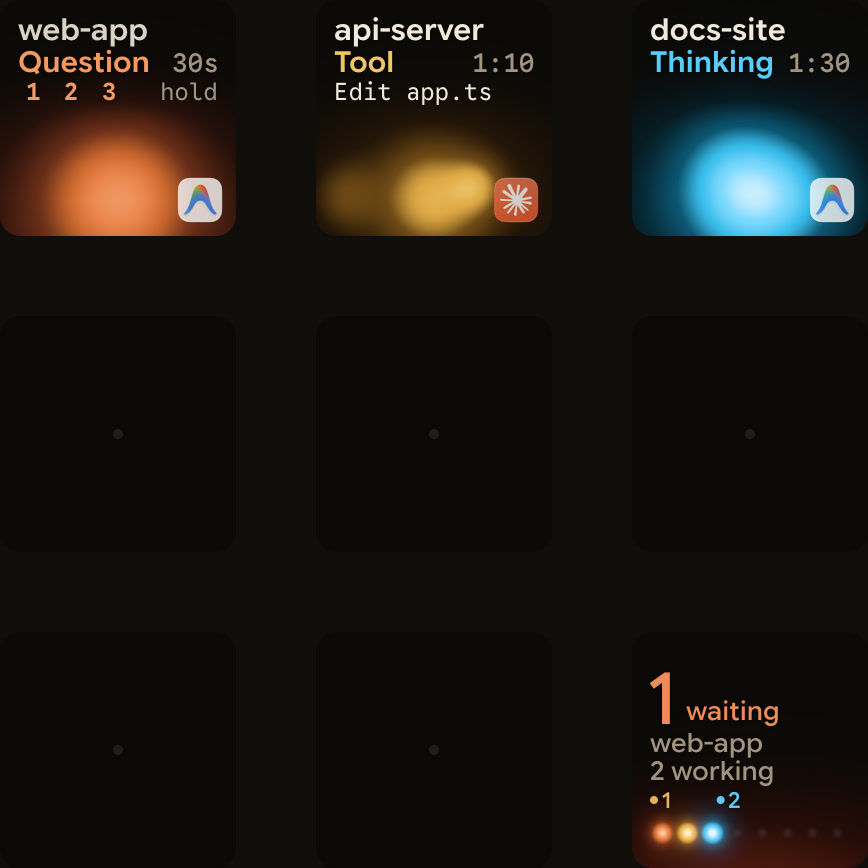
Orbtile shows every conversation in the Antigravity desktop app as its own key, with its title and state. A conversation that's waiting on a question moves to the front, and its key says Question. From Orbtile 0.2.10, replies also appear as live typewriter text. From Orbtile 0.2.6, when the keys can answer a question, the key shows its option numbers, such as 1 2 3 hold. From Orbtile 0.3.4, Antigravity's waiting states use the shared terracotta alarm colour.
Antigravity updates itself, and Orbtile isn't tied to one version. If an update changes how Antigravity talks to Orbtile, live text and keypad answers stop until Orbtile catches up; the conversations and their states keep showing, and you answer in Antigravity.
Questions with numbered options can be answered from the keys:
- When a question comes in, hold the conversation's key so the options appear on keys 1, 2, 3 and 7.
- Tap your picks, then hold Send on key 9 for 0.6 seconds.
- Sent means Antigravity acknowledged the reply.
Up to four questions with two to four choices each work this way. Permission requests and written answers stay on the computer, and the question in Antigravity always works too.
Orbtile follows the desktop app only; Antigravity IDE and CLI sessions don't appear. It works the same way on Windows 11.
If you also run Anthropic's agent alongside Antigravity, see Google Antigravity vs Claude Code: what's the difference for how their apps, CLIs and keypad support compare.
FAQ
Can Orbtile approve Antigravity terminal commands?
No. Approve those in Antigravity, or choose a permission preset that asks less often.
Does it work with the Antigravity CLI or IDE?
No, Orbtile follows the Antigravity desktop app.
Can I use a phone instead of the keypad?
Yes. Orbtile Mobile on an iPhone or Android phone shows the same conversations.
When does the Antigravity CLI send a notification?
Once notifications is turned on, the CLI rings the terminal bell and shows a desktop notification when the agent needs your approval or an answer, or finishes its turn. It is off by default.
Why did Antigravity stop asking for permission or stop notifying?
Check that notifications is on, with /config in the CLI or the Notifications page in the App settings. Agents also pause less often when a permission preset or toolPermission skips prompts, such as Auto or Turbo in the App, or auto and always-proceed in the CLI.